Choosing a USB Flash Drive That Is Actually Fast
Flash drives are sold on capacity because capacity is a single easy number. Speed is what you actually experience, and the difference between two drives of the same size can be a factor of ten on a real transfer.
Read speed and write speed are different numbers
Manufacturers usually advertise read speed, because it is the higher of the two. Write speed — what matters when you are copying files onto the drive — is often a fraction of it and is sometimes not published at all.
For backing up or moving large files, write speed is the number that determines how long you wait. A drive advertising 150MB/s read may write at 20MB/s.
Where only one figure is given, assume it is read and assume write is considerably lower.
USB generations, in plain terms
USB 2.0 tops out around 480 megabits per second, which is about 60MB/s theoretical and closer to 35MB/s in practice. USB 3.0 and later raise that ceiling by roughly ten times.
A USB 3 drive in a USB 2 port runs at USB 2 speed. Both ends have to be USB 3 for the benefit, and on older machines the blue port is the one to use.
The naming has been revised repeatedly — 3.0, 3.1 Gen 1, 3.2 Gen 1 all describe the same 5Gbps tier. Read the speed rating rather than the version label.
Why large cheap drives are often slow
Flash memory comes in grades. Higher-grade chips with more parallel channels are faster and more expensive; low-grade chips with a single channel are cheap and slow. A very inexpensive high-capacity drive is usually the second kind.
There is also a sustained-write problem: some drives write quickly for the first few hundred megabytes into a fast cache, then collapse to a much lower rate once the cache is exhausted. This is invisible on a small test file and obvious on a large one.
If a drive is priced far below comparable capacities, the difference is almost always speed rather than a bargain.
File systems and the four-gigabyte wall
A drive formatted FAT32 cannot store a single file larger than four gigabytes, which is a common surprise when copying a video. exFAT removes that limit and is readable by Windows, macOS and most modern devices.
NTFS is fine for Windows-only use and is read-only by default on macOS. For a drive that moves between machines, exFAT is usually the right choice.
Reformatting is quick and erases everything, so do it before you put data on rather than after.
Physical design matters more than it should
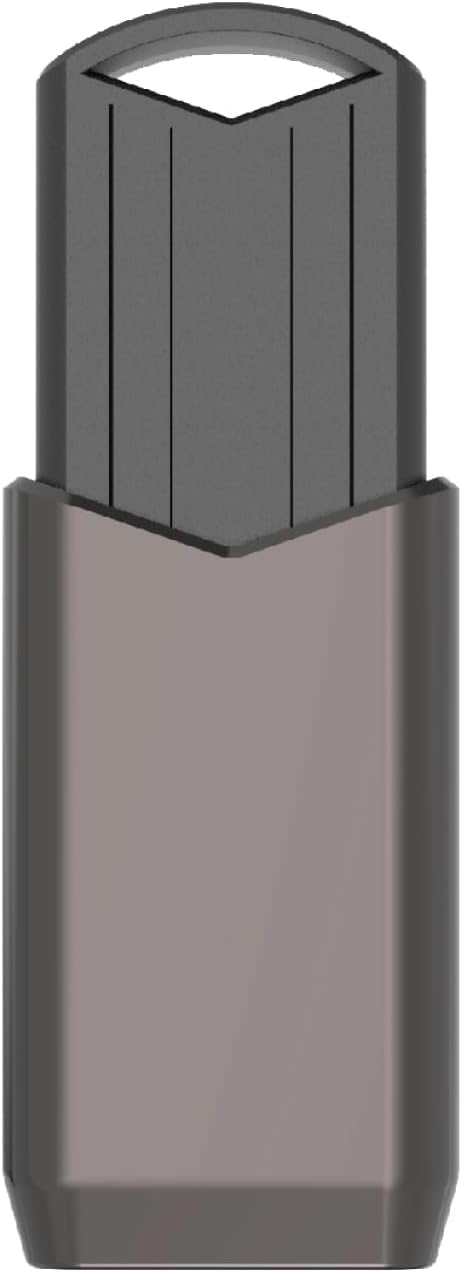
A cap that is separate from the body will be lost. A sliding or swivel design avoids that entirely and is worth choosing for a drive you carry.
Wide bodies block adjacent USB ports, which is a real irritation on a laptop with two ports side by side. A slim or recessed design avoids it.
A metal body dissipates heat better under sustained transfers, and fast drives do get warm.
Reliability and what a flash drive is not
A USB drive is transport, not storage. Flash cells lose charge over years without power, controllers fail without warning, and drives get lost. Anything that exists only on a flash drive is not backed up.
For a genuine backup, use at least two independent copies and keep one of them somewhere else. A flash drive can be one of them; it should not be the only one.
Eject properly rather than pulling the drive out. Interrupted writes are the most common cause of a corrupted file system.
Security on a drive that will be lost
Assume any drive you carry will eventually be lost. Encrypt anything sensitive on it — BitLocker To Go on Windows, or an encrypted disk image on macOS — rather than relying on a folder name.
Hardware-encrypted drives with keypads exist and are convenient, though they are considerably more expensive and their firmware quality varies.
For most people, an encrypted container holding the sensitive subset is the practical middle ground.
What to buy for what purpose
For moving documents and photos between machines, any USB 3 drive of modest capacity is plenty. For moving video or disk images, buy on write speed and accept a smaller capacity for the money.
For a bootable installer, capacity and reliability matter more than speed, and a well-known controller is worth paying for.
The Centon high-speed drives we stock publish their transfer figures on the listing, which is the number worth comparing between models.
Where to go next
USB flash storage is in Storage & Media. Transfer speeds are listed where the maker publishes them.
Shop Storage & Media
Related articles